



Light Stream™ Tutorials
How it works Setup videoDid you buy your Light Stream before 2018? Click Here to see more information about the original system.
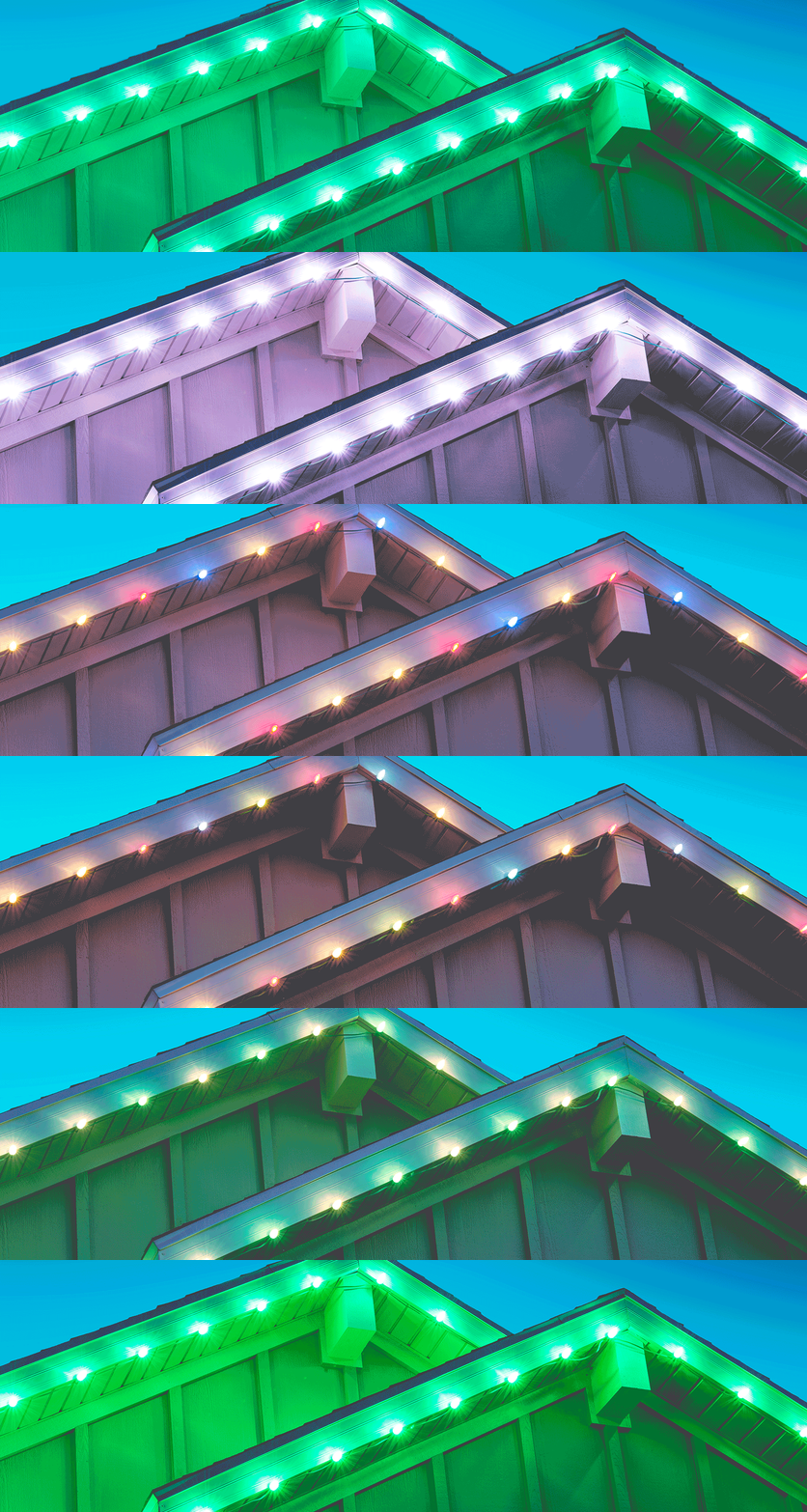
Light Stream™ is a revolutionary remote lighting system.
We understand that you may have some questions.
Here are some tips and troubleshooting to help you get setup.
Tutorials & Troubleshooting
Firmware Updates
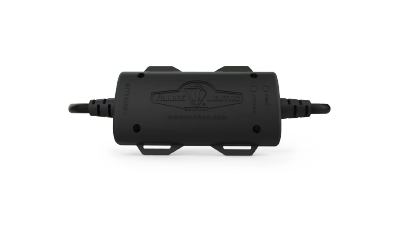
Controller
Gen 2 (2018) Bulbs: V40
Gen 3 (2019) Bulbs: V50
App
IOS Version: 1.1.2
Android Version: 1.4.3
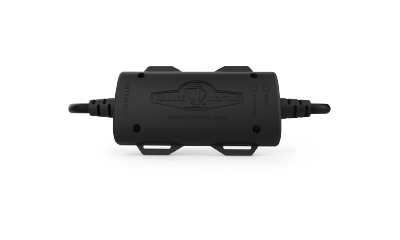
Switch
Gen 2 (2018) Bulbs: V212
Gen 3 (2019) Bulbs: V250
What's new in these updates?
IMPORTANT: To use the new features of this app release (Specifically Pairing Changes), after update of app, you must update controller and switch firmware*
- Numerous bug fixes and enhancements
- Separated Pair Devices into two processes. Switch Pairing will now occur separately and will not unpair switches when pairing bulbs. Bulb pairing will now be a separate process that will not affect paired status of switches.
- Switch firmware update: No longer needed to pair switches again after switch firmware update
- ***If your system is currently paired and running themes and schedules, it will continue to operate successfully without updating firmware at this time. You may opt to update later, but please note that if you want to pair devices, you will need to update firmware.



Resource Downloads
Commonly Asked Questions
Depending on the project, and any architecture that might be blocking the signal between the switch and controller, this might vary. But, we typically recommend 50 feet.
Your phone may have disconnected from the controller. Shut down the app completely, then restart. Select the controller from the controller list page and reconnect and sync.
We recommend that the beginning of the series of bulbs plugged into the controller or switch be located as close to the device as possible as this will help reduce pairing time. The bulbs communicate directly with the controller and switch through the network of bulbs beginning from the first bulb connected to the controller or switch down the line to the last bulb.
Press the paint bucket on the home screen and select a color.
No, you can plug them directly into the controller.
The switch and controller to not track the current firmware version on the switch. Check our website to see latest Switch firmware releases and update only after new releases.
You now need to tell the bulbs what color to change to. Press the paint bucket on the home screen and select the color you want. The bulbs will update to your chosen color.
Currently, the controller only supports off-times that are the same day as the on-time. 11:59 PM is the last supported off-time.
First, sometimes it’s takes several minutes for your switch to pair, continue with the pairing process until it finishes. The Switch(s) and their bulbs will pair at different times than the controller bulbs. After a full pairing cycle, if the switch hasn’t paired, then you may need to force pair. See the tutorial to force pair a switch.
No, Light Stream 1, including the light stream 1 app, are not compatible with any light stream 2 components.
No, once the controller gives you the go-ahead to unplug the switch and plug in again, you can do each switch in the controllers range when you can reach them to power down. As long as the controller is broadcasting the update, you can continue to power off/on switches to begin their updates at any time. When your last switch has updated, press continue on the app to stop the firmware broadcast.
Due to limitations in controlling the individual current to each of the LED’s on the RGB chip, the red LED is the last to turn off as it requires the lowest current to activate. To avoid the red, try creating themes that do not have any color containing red. For Example, Green to blue to Warm Clear would not have any red during the transitions.
Extra power is required to activate the receiver on each bulb. This is achieved by rerouting power from the LED to the receiver.
Before using a switch with another controller, you must make sure that both the controller your assigning the switch to, and the controller it’s being moved from, have both been “un-paired” from that switch using the unpair function in the app. Remember, when you unpair, you’ll have to pair everything else again to resume normal operation. Light Stream components are paired as a collective network and are not added individually.
Each switch will begin its pairing process at a different time. When you start the pairing or color change process, give the system plenty of time to complete.
Each channel has the ability to have up to a three color fade sequence. Each color you choose will be another fade color. It’s not necessary to fill the 2nd or 3rd circles if you do not wish to have a fade. Select the Star to create a random twinkle for your selected bulb channel.
In some cases, interference will prohibit the switch from receiving the pairing finished signal. If this happens, end the pairing process and use the app to power off the system. Any switches that are still on after you’ve turned off Light Stream need to be unplugged, then plugged in again. Once powered back on, the switches should now be ready and paired. Turn on Light Stream and continue using as normal.
It’s best to pair all devices before you install. Once bulbs are paired to a controller and switch, they will remain paired even if pairing process is completed.
If you’re setting up a project and simply need to pair again, but still have the same bulbs and switches, or are adding bulbs and switches, just use the “Pair” function again. DO NOT “unpair” first. When you use the Pair function, bulbs will retain their original pairing and respond to controller’s and switch’s color change commands. Bulbs originally paired to the controller the first time may not necessarily turn green the second time, but will retail the pairing. You may use the “Pair” feature to continue to add bulbs and switches to the project (Please note that all devices and bulbs MUST be plugged in for each pairing session). The “Unpair” feature will unpair the bulbs AND switches from the controller completely. Once “Unpaired”, all devices will cease to communicate until paired again.
The simple schedule may be configured to have multiple on/off times by activating the multiple time feature. Note that times must be entered in sequential order from beginning of day to end, and cannot extend past the same current day period. For example, if you wanted the lights to come on from 5:30 AM to 7:30 AM, then again from 6:00 PM to 11:00 PM, you would set time #1 from 5:30-7:30 AM, then Time #2 from 6-11 PM. Photocell option cannot be used if setting the first on-time in the morning hours.
'Password Protected' Pro Light Stream Functions
The password to unlock Pro Light stream functions can be found below. Please note these guidelines prior to trying these functions:
Password: 2020
NOTE:WHEN USING THESE FUNCTIONS, IT’S BEST PRACTICE TO ONLY HAVE THE BULBS THAT YOU’D LIKE TO CHANGE PLUGGED INTO THE SWITCH OR CONTROLLER.
Update Bulb Firmware
Bulb firmware updates are not typically required as bulbs almost always arrive with the latest firmware installed. If VLC support staff instructs you to update bulb firmware, then you may use the password (shown above) to unlock this process.
Manage Bulb Channels
1. Reassign Bulb Channel: If your bulb is flashing through each of it’s native LED colors (Red, Green, Blue, White), then it’s lost it’s bulb assignment. You will use this tool to get that bulb reassigned a channel.
2. Change Bulb Channels: If you’d like to take some bulbs and manually change them to be a certain channel, then you can use the tool for this. Why would you do this? If you have a tree or other feature that you’d like to also light with Light stream, but have independent color choices than your roofline, for example, then you would change some bulbs channels to 7,8,9 or 10 and then create corresponding colors in your custom themes to be mapped to those channels.
Now, how do you use each option?
1. All Unassigned bulbs (Flashing): For any bulbs that are flashing, you can select this option AND select the channel at the bottom to assign these bulbs to. For example, you might select all unassigned bulbs and Channel two. This will assign ALL currently powered up (and plugged into a switch or controller) bulbs to the new channel 2.
2. All Bulbs: If you select all Bulbs, then a channel below, it will change ALL bulbs to that channel. BE CAREFUL AS ALL BULBS CURRENTLY PLUGGED INTO A PAIRED SWITCH OR CONTROLLER WILL BE CHANGED. IF YOU ONLY WANT A SMALL QUANTITY OF BULBS TO BE UPDATED, THEN ONLY PLUG IN THE BULBS YOU WANT TO CHANGE.LEAVE THE REST UNPLUGGED.
3. Restore Default Channels: For any bulbs manufactured in 2019 or higher (LS3 Bulbs), you can select all bulbs, then Restore Default Channels to restore all the bulbs back to their factory default channel. This option does not work for 2018 (LS2) Bulbs.
Additional Resources
Setup & Troubleshooting Tips
A PDF guide for on-the-go setup and troubleshooting.
Explore our Family of Brands


